
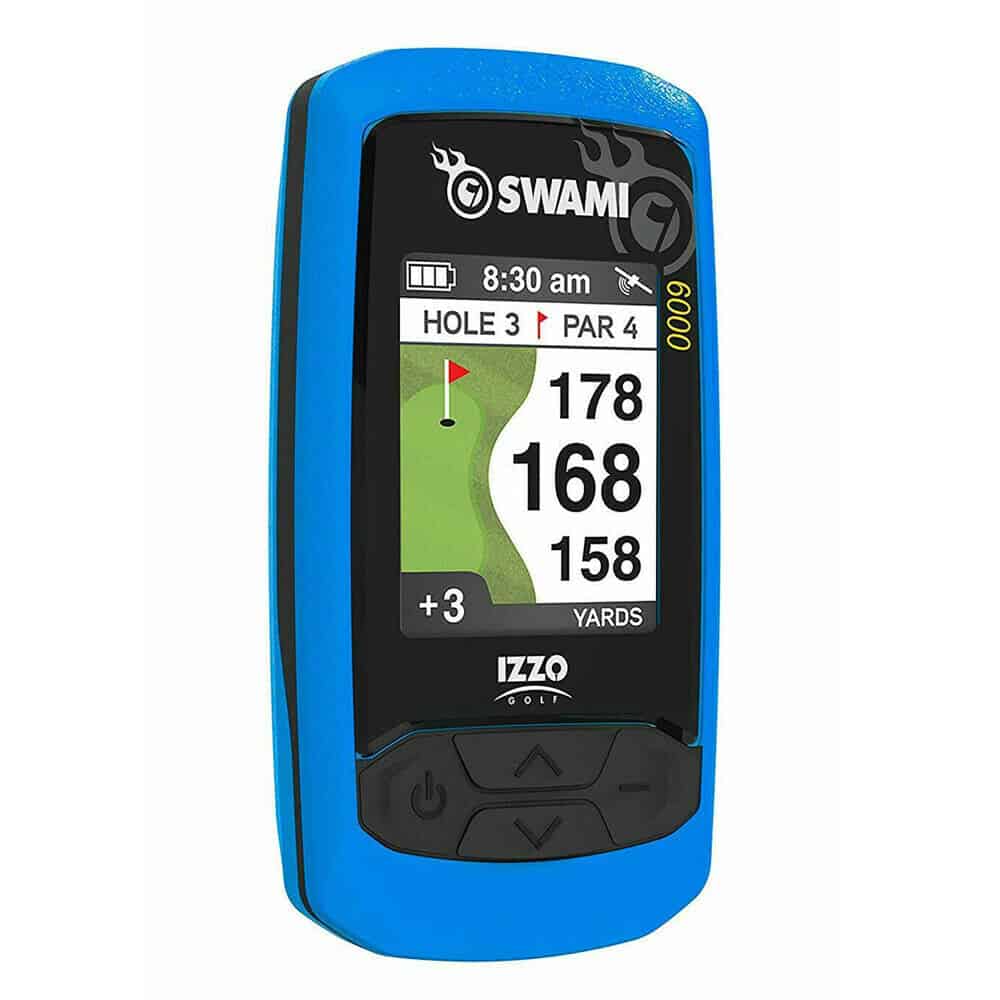
An Izzo Swami 6000 that freezes, loses its course or gives an unexpected distance does not necessarily need replacing. The useful first step is to identify what has actually stopped working. A screen that ignores every button is a different problem from a working screen showing the wrong hole. Likewise, a unit that never charges needs a different investigation from one that switches itself off after a period of inactivity.

This guide covers the original Swami 6000 and highlights an important difference where the later 6000i is concerned. It combines verified model information with a practical process for narrowing down faults. The examples are diagnostic illustrations, not claims that every unit develops these problems or that a particular repair is guaranteed.
Start with the symptom you can reproduce. Record what the screen shows before changing anything, make one change at a time, and check the result. That approach gives you a better chance of restoring useful operation and gives support something concrete to investigate if the problem remains.
First, Make Sure You Have the Right Swami Model
Check the name on the device and its model information rather than relying on an online shop’s listing title. IZZO’s current product page at an address containing “swami-6000-golf-gps” describes the newer 6000i. Consequently, a search result for “Swami 6000” can lead to specifications and instructions for a different generation.
The 6000i has USB-C charging and separate Power and OK controls. Its manual documents a force shutdown using Power, Up and OK together. Use that procedure only when the device is positively identified as a 6000i. It is not evidence of a reset sequence for the original 6000.
IZZO lists the two models separately on its official product support page. Select the matching manual and update tool there. In particular, do not substitute the software for a Swami watch, KISS, 5000 or 7000i because its download happens to look newer.
Original 6000 Controls and Reference Figures
The original 6000 manual specifies micro-USB charging at a recommended 5V, 1A, approximately six hours for a full charge, and a nominal operating duration of 10–12 hours. These are reference figures, not a guarantee for an ageing battery.
| Task on the original 6000 | Documented control or setting |
|---|---|
| Start the device | Hold Enter for three seconds |
| Shut down normally | Select Power Off, then press and release Enter |
| Correct the displayed hole | Use Up or Down in Play Mode |
| Change distance units | Use Meter/Yard in Settings |
| Access scoring or shot measurement | Enable Scorecard or Shot Distance in Settings |
| Review saved rounds | Score History retains the last ten saved scores |
| Investigate timed shutdown | Check Auto-Shut Off in Settings |
The manual gives an IPX3 water-resistance rating and cautions against disassembly. It does not document a factory-reset key combination for the original model. If the ordinary controls cannot recover it, obtain model-specific recovery instructions from IZZO.
Find the Right Starting Point
A fault description should include both what fails and what still works. “It is broken” leaves too many possibilities open. “It starts while connected to the charger, but the screen goes dark immediately after unplugging” narrows the investigation considerably.
| What you observe | Best first check | What the result helps distinguish |
|---|---|---|
| Completely blank screen | Charging supply, cable and normal startup | Missing power versus a display or internal fault |
| Lit screen with no button response | Whether any normal menu action works | A genuine lockup versus a misunderstood control |
| Works on cable, stops when unplugged | Repeat after a proper charging session | Battery or internal power trouble |
| Searches without usable course information | Open-sky test at the course | Reception versus course-selection problems |
| Other courses appear, yours does not | Exact course identity and database coverage | Missing or outdated course information |
| Numbers appear but look wrong | Hole, units, target and measurement position | A comparison error versus a persistent distance fault |
| Advances to the wrong hole | Correct the hole manually | Automatic selection versus total device failure |
| Computer cannot find it | Correct model tool and a data-capable cable | USB communication versus charging alone |
| Turns off after a similar idle interval | Shutdown setting and elapsed time | A configured timer versus loss of power |
Keep the first test simple. Changing the charger, cable, settings and course selection simultaneously may make the fault disappear, but you will not know which change mattered. If it returns on your next round, you would have to start the investigation again.
The Swami 6000 Will Not Turn On or Charge
Separate a Flat Battery From a Failed Charging Connection
Begin with the power path outside the device. Check that the wall outlet works, that the USB adapter is connected properly and that the cable seats without being forced. Inspect the cable for splits or a bent plug. Look into the device’s socket under good light, without inserting metal tools or applying liquid cleaners.
Use a known-working, suitable charging supply and a compatible cable. A cable that worked months ago is not a useful control if it has since been bent repeatedly in a golf bag. Conversely, a new cable is not automatically a good cable. When possible, verify the replacement with another compatible device before using it to rule out a cable problem.
Record whether the screen or charging indication changes when you connect it. A response shows that something is happening; it does not prove that the battery is accepting and retaining a full charge. No response leaves several possibilities, including the supply, cable, socket, internal charging circuit and display.
Allow a normal charging session instead of repeatedly unplugging after a few minutes to try the power button. Check periodically for abnormal heat or physical deterioration. Stop using a device with swelling, leakage, a damaged enclosure around the battery or an unusual burning smell. Do not attempt to revive it by applying extra voltage.
If Charging Depends on Holding the Plug at an Angle
An intermittent connection is useful evidence. Test another known-good cable once, with the device resting on a stable surface. If the same symptom persists, the socket or its internal connection needs assessment. Wedging the cable sideways is not a repair and can put further stress on the connector.
Describe the behaviour precisely when seeking help: whether moving the cable interrupts the charging indication, whether the plug feels loose, and whether the issue follows one cable or occurs with both. Those details are more informative than assuming that the battery is worn out.
If It Works Only While Connected
Repeat the observation after a suitable charge, then disconnect while the device is stationary. If it immediately loses power, focus the support request on that behaviour. It may involve the battery or its power connection, but the external test cannot identify the exact internal component.
Do not order a battery solely because an online listing claims to fit a “Swami GPS.” Dimensions, connector arrangements and charging requirements can differ. Ask IZZO whether an approved service or replacement option exists for your exact model before opening the case or paying for parts.
Battery Life Has Become Too Short
A useful battery test measures elapsed operating time, rather than the number of holes alone. Nine holes on a busy course can take much longer than nine holes on an empty course. Time spent switched on before teeing off and during a meal also belongs in the total.
Charge consistently, note when you disconnect the cable and record when you start using the device. Write down whether it shuts down suddenly, gives a low-battery indication first or remains usable after an ordinary restart. Repeat under similar conditions if doing so is practical and the device has no signs of physical damage.
Check Whether It Is Actually Running Out of Power
A repeatable shutdown after an idle period should prompt a settings check before a battery diagnosis. A unit that restarts and continues operating for a substantial time behaves differently from one that will not restart until connected to power.
For example, suppose the device switches off while you are waiting at the clubhouse, then works normally for the rest of the round after restarting. That observation makes a timed shutdown worth investigating. It does not, by itself, establish that the battery has failed.
By contrast, suppose it runs for only twenty minutes after each verified charge and refuses to operate again until plugged in. That is stronger evidence of a charging or stored-power problem. Record the repeated result rather than trying a succession of unrelated GPS changes.
Compare Like With Like
The current 6000i product description advertises a 16-hour battery duration. Do not use that figure to judge the older 6000. Comparing an original unit with a different model’s specification can make otherwise ordinary behaviour look like a defect.
An ageing device that no longer completes your usual round deserves attention even if it still turns on reliably. Before a trip, establish the usable runtime at home and on a familiar course. Carry a backup way to judge distances until you know whether the problem has been resolved; an untested repair is a poor basis for planning a full day’s golf.
The Screen Freezes or the Buttons Stop Responding
Establish Whether the Whole Device Is Frozen
Try one ordinary menu action and observe the result. If the selection moves, the device has not completely stopped responding. You may be on a different page from the one you expected, or the displayed distance may be unchanged because your position has not changed meaningfully.
If only one button fails while the others work, report that distinction. A single control that sticks, needs unusual pressure or works intermittently points to a different investigation from a screen that ignores every control. Pressing harder or levering around the button risks turning a small fault into physical damage.
A white or illuminated blank screen also deserves a precise description. Is text absent from startup, or does the display fail only after choosing a course? Does it happen while charging, after rain, after a drop, or during a particular menu action? The sequence matters more than the colour of the screen alone.
Use a Verified Recovery Procedure
Use normal shutdown if the menu still responds. If it does not, stop treating repeated button combinations from unrelated models as harmless experiments. A procedure described as a “reset” could mean a restart, a forced shutdown, a settings reset or something that changes stored data.
For the original 6000, ask support for a recovery procedure matched to the model and software version. Explain whether you need to preserve saved scores. Do not assume that holding a button for an arbitrary length of time restores factory settings, and do not claim that a successful restart has repaired the underlying cause.
Avoid opening the casing to disconnect the battery or deliberately running repeated full discharge cycles as a routine cure. Neither is necessary to document the fault. If the device remains locked, give support the exact frozen screen and the last action that worked.
Test the Trigger After Recovery
Once operation returns, repeat the action that previously caused the freeze before trusting the device for a round. If it froze after selecting one course, check whether it can select that course now. If it failed while connected to a computer, test the connection using the correct official tool and a sound cable.
A recurrence at the same step is especially useful evidence. Record that step and stop changing unrelated settings. If the problem occurs across several unrelated screens, tell support that too; it makes a single course record a less complete explanation.
It Keeps Searching for GPS
GPS reception and course information are separate parts of the process. The receiver needs a usable position, while the device also needs suitable course data. A problem in either area can leave you without useful yardages, but updating a course cannot remove a physical obstruction above the receiver.
GPS.gov explains that buildings, trees and reflected signals can degrade positioning. Its published accuracy discussion concerns GPS generally; it is not a specific accuracy guarantee for the Swami 6000. Treat a test under open sky as a way to improve the test conditions, not as proof that every remaining error must be a hardware fault.
Run a Controlled Outdoor Check
Choose an open area at the golf course, away from the clubhouse roof and heavy tree cover. Keep the device reasonably still and give it time to establish reception. Avoid switching it off repeatedly while it is searching; repeated restarts make the elapsed search time difficult to judge.
Note what changes on the screen and how long the attempt takes. “Still searching after a timed attempt in an open fairway” is more useful than “takes forever,” particularly if the alternative test was inside a car or building.
If it begins working when moved into the open, repeat that comparison another time before drawing a firm conclusion. A single successful attempt does not prove an antenna problem or a permanent cure. It does show that the unit can sometimes produce a position and that the operating environment deserves attention.
When the Same Test Keeps Failing
If the menus work but no usable location is obtained during repeated outdoor attempts, record the model, version, place and approximate date of testing. Ask support whether a software issue is known for that version or whether the unit requires inspection.
Another GPS device working nearby can provide context, but it is not a laboratory test of your Swami. Different receivers and software can behave differently. Use the comparison to describe the situation rather than to claim a particular internal component has failed.
Do not assume that changing the displayed clock will repair reception. Investigate a clock setting when the clock is wrong; investigate position acquisition when the device cannot obtain usable course information outdoors. Combining the two without evidence can obscure the original problem.
Your Course Is Missing or the Wrong Layout Appears
Confirm the Course Identity
A facility may have several courses, named combinations of nine holes, an academy layout or a short course. A familiar club name in a results list does not establish that the selected layout is the one you are playing.
Ask the professional shop which course name and nine-hole combination apply that day. Note any temporary routing, renamed course or recently rebuilt green. Those details matter because a database can identify the right venue while still representing a different layout.
For a missing venue, use IZZO’s course search. The company provides a route to request a coverage check or mapping assistance. A listing there is useful evidence of database coverage, but it does not prove that your particular unit already contains the latest version of that record.
Distinguish One-Course Trouble From General Trouble
Suppose the device behaves properly at two familiar courses but fails to list a third. The sensible next step is to investigate the third course’s identity and data, not immediately replace the device. Conversely, failure to obtain useful information anywhere leaves a wider set of possibilities.
Keep a small record of the comparison. Include the exact course names as displayed, rather than just the town. For multi-course facilities, add the selected layout. This helps support distinguish a missing map from a similarly named map selected by mistake.
If a renovation has changed one hole, report that hole specifically. A statement such as “the green on hole seven was moved and the old location still seems to be used” gives the mapping team a clearer starting point than “all the GPS numbers are bad.” Do not promise a correction date; only the provider can confirm its update process.
Distances Are Missing, Jump Around or Seem Inaccurate
Check What You Are Comparing
Before judging accuracy, identify the target represented by each number. A distance to the centre of a green is not automatically the distance to today’s flag. A laser measurement to a flag and a GPS measurement to a mapped green reference can therefore differ without either reading being an obvious malfunction.
Also compare from the same physical position. If the Swami is left on the cart while you walk to your ball, it is measuring from the device’s position. The difference between the cart and the ball can be large enough to influence club selection, even when the device itself is operating normally.
As a simple illustration, imagine a flag placed behind the centre of a long green and a cart parked behind the ball. Comparing those readings without accounting for both offsets can make the discrepancy look worse than it is. Bring the devices together and identify the targets before interpreting the difference.
Check Units Before Blaming the Receiver
A yard and a metre are different lengths. A reading of 150 metres is approximately 164 yards. If one device shows metres and the other yards, a consistent numerical difference is expected and will grow with distance.
This is a useful pattern to look for. A unit mismatch tends to produce a proportional discrepancy; an incorrect hole or target may produce a much less consistent difference. Change the units only after confirming what each display is using, then repeat the comparison from the same place.
Do not compare the day’s GPS reading casually with a number printed on a tee marker. First establish what the marker measures and from which exact point. Tee positions can move, and a published hole length is not necessarily the remaining straight-line distance from where you are standing.
Investigate a Repeatable Error
Choose a familiar hole and note your position, the selected hole and the displayed front, centre and back figures. If there is a trustworthy comparison, record its target and units too. A photograph of both displays from the same location can be more helpful than an estimate recalled after the round.
If only one hole repeatedly looks wrong, investigate that hole’s data. If the readings become erratic only near particular obstacles, repeat in an open location. If the problem appears everywhere, after confirming units and selection, move to the official software and support checks.
Do not “calibrate” the device by mentally adding a fixed number to every shot based on one discrepancy. A mistaken target, changing reception conditions or a single mapping error will not necessarily create the same offset elsewhere. Until the cause is understood, cross-check any yardage that would materially change your shot choice.
It Switches to the Next Hole Too Early
Treat the displayed hole number as part of the pre-shot check. When an unexpected yardage appears, verify that number before restarting the device or abandoning the round. The practical immediate correction is the manual hole control shown earlier.
After correcting it, confirm that the yardages make sense for the hole you are actually playing. Then continue and note whether the error repeats at the same location. A repeat on one course is a different pattern from apparently random changes across several courses.
Courses with nearby greens, tees or parallel holes can make the circumstances worth documenting, but do not assume you know the device’s internal switching rule. The user manual does not provide enough detail to diagnose its selection algorithm from a single incident.
There is no need to walk back towards a tee merely to try to make the device recognise the previous hole. Stay with the normal flow of play and use the available control. If you keep scores electronically, check the displayed hole before entering a score so the corrected distance and the score entry refer to the same hole.
The Computer Cannot Recognise the Swami
Charging Does Not Prove Data Communication
A USB connection can supply power without successfully transferring data. Therefore, “it charges from the computer” does not establish that the cable, connector and software are all suitable for updating.
Use a compatible cable known to support data and connect directly to a computer port for the first test. This removes a hub or adapter from the initial investigation. Change only one element at a time, and note whether the operating system or update application reacts.
If one cable works and another does not, keep the working cable identified for future updates. If neither works, avoid concluding immediately that both are bad or that the Swami is irreparable. The application, operating system and device state still need checking.
Select the Exact Official Update Tool
At the time of checking, IZZO’s support page linked a Windows executable under the original Swami 6000. Other models had different entries, including separate Mac downloads for some newer products. That is not confirmation that another model’s Mac tool supports the original 6000.
Follow the instructions supplied with the correct download, including the required device connection and power state. If your operating system is not supported or the instructions are unclear, ask IZZO before proceeding. Do not follow a lookalike support site’s advice to install a generic driver updater or pay for remote access.
Record the application’s exact message. “Device not found,” a failed download and an error while writing data describe different stages. Include the computer’s operating system and whether the program ever displayed the device’s model information.
If an Update Is Interrupted
Do not repeatedly disconnect a device during an active write operation or format a drive that appears unexpectedly. A computer offering to format storage is not proof that formatting is the manufacturer’s recovery method.
Capture the error and consult the official recovery guidance. If the device still operates, check the original symptom before attempting more changes. A successful update message should be followed by an on-course check; it cannot, on its own, prove that a missing layout or yardage discrepancy has been corrected.
Scores, Shot Distance and Clock Settings Cause Confusion
Missing information is not always lost information. Before investigating a hardware fault, distinguish a disabled feature, a different display format and an entry saved against the wrong hole. Make a brief practice check on a familiar course when you are not under pressure to keep up with a group.
For scoring, record one sample entry and verify where it appears before relying on the device for the entire round. If the display is relative to par, an even-par indication is not the same kind of number as a raw stroke total. Compare the format as well as the value.
Keep a separate score record when testing a device that has been freezing. A paper card or other backup prevents the troubleshooting process from becoming the only record of the round. Before following any support-directed reset, ask specifically what happens to stored rounds and preferences.
For shot measurement, think about the two measurement positions. Starting the measurement after leaving the ball’s original position, or reading it before reaching the ball, changes the result. It also cannot tell you carry distance separately from roll simply by knowing the start and finish positions.
A clock that is wrong by an hour calls for a time and daylight-saving settings check. A display using a different time format is another separate issue. Note whether the change persists after normal shutdown, then report a repeatable failure to retain the setting instead of repeatedly re-entering it during play.
Care That Makes Future Faults Easier to Avoid
The most useful routine is consistent and simple. Keep the charging cable identifiable, inspect the connector before plugging it in, and pack the device so buttons and the screen are not pressed against hard objects. A small protective storage space also makes it easier to notice a new crack or loose part.
Treat water resistance as limited protection rather than permission to immerse the unit or charge it while wet. If it has been soaked or dropped in water, stop using and charging it and obtain advice. A dry-looking exterior does not establish that the inside is dry.
Do not leave the unit baking in a parked vehicle or use a heater to speed drying. Allow it to return to ordinary indoor conditions before assessing an apparent temperature-related problem. Report the exposure honestly; it helps distinguish a pre-existing fault from damage associated with storage or an accident.
Before leaving for golf, use this short check:
- Confirm that charging completed and the device starts while unplugged.
- Check the display and buttons before packing it away.
- Verify that the intended course and layout are supported before an unfamiliar trip.
- Allow time at the course to obtain useful GPS information before teeing off.
- Check the selected hole and units before trusting the first yardage.
- Remove the device from the cart and save any required information before leaving.
These checks will not prevent every electronic fault. They do, however, move the discovery of a flat battery, wrong setting or missing course to a point where you can do something about it, rather than finding out halfway through a round.
What to Send IZZO When Basic Checks Do Not Help
Prepare a concise fault report rather than a list of guesses about defective components. The aim is to let support reproduce the sequence or identify the next useful test without asking you to repeat information.
Include the following:
- Exact model, software version and serial number, where available.
- Purchase date and proof of purchase if you are seeking warranty assistance.
- The screen message or a clear photograph showing the fault.
- The last action that worked and the first action that failed.
- Course name, location, layout and hole number for mapping or distance problems.
- Charging equipment, cables and computer operating system relevant to the tests.
- Whether the issue occurs repeatedly and what changed during each comparison.
IZZO’s published limited warranty covers manufacturing defects for one year and requires a return authorisation before goods are sent back. Its exclusions include ordinary wear, misuse, third-party repairs and modifications. Check your circumstances with the company rather than assuming an older battery or water-damaged unit qualifies for replacement.
Use the official IZZO contact page to arrange help. The general customer-service number listed there is 1-800-284-1220. Ask about the available options and any charges before shipping an out-of-warranty unit. Do not assume that an authorised local repair shop or replacement battery service exists in your area until IZZO confirms it.
Decide Whether the Problem Has Actually Been Solved
A device that turns on once after troubleshooting has passed a startup check, not a complete reliability check. Test the specific failure that brought you here: complete a representative charging and runtime check, revisit the problematic course or verify that the previously frozen menu now behaves normally.
Keep the scope of the result clear. A replacement cable solving a charging problem does not demonstrate that course data are current. An updated course restoring sensible yardages does not prove that the battery will last all day. Separate checks make it easier to trust the functions you have actually tested.
If the same fault returns, use your notes to describe the pattern and seek the next supported step. A careful account of the model, conditions and repeated behaviour is more useful than a blanket conclusion about the product’s quality—and far more likely to lead to the right remedy.