
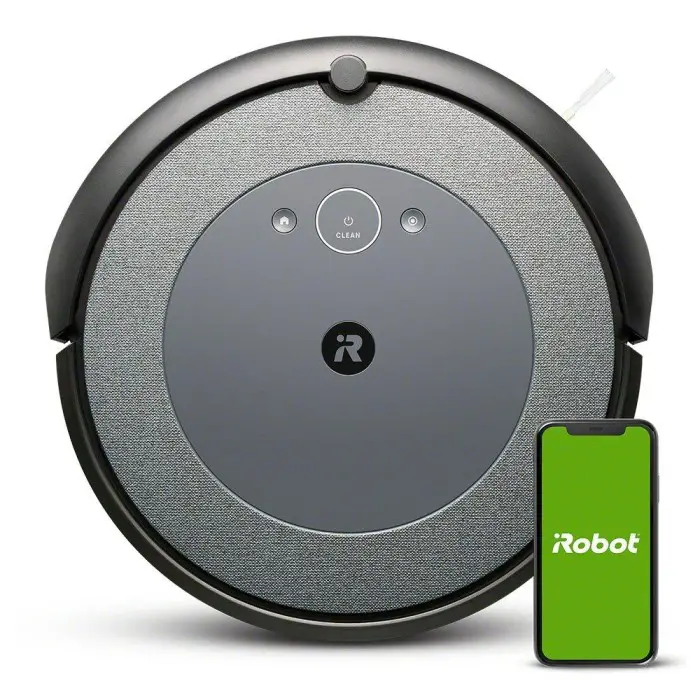
The Roomba i3 series are reliable robot vacuums designed to make your cleaning routine effortless and efficient. These intelligent devices combine powerful suction, systematic navigation, and smart features to keep your floors spotless with minimal intervention. The i3 lineup includes the standard Roomba i3, the i3+ with automatic dirt disposal, and the i3 EVO with enhanced mapping capabilities – all built to handle everyday messes, pet hair, and the demands of busy households.

However, like any sophisticated piece of technology, the Roomba i3 series can encounter problems that may affect performance or user experience. From technical malfunctions such as navigation errors and charging failures to common user complaints about noise levels and cleaning efficiency, understanding these issues is crucial for maintaining your robot vacuum’s optimal performance.
This comprehensive troubleshooting guide addresses the most frequently reported problems with the Roomba i3, i3+, and i3 EVO models. We cover everything from technical malfunctions (navigation errors, charging failures, sensor faults, Wi-Fi glitches) to consumer complaints (excess noise, poor cleaning, mapping bugs) and maintenance concerns (worn brushes, dust bin errors, clogged filters, debris buildup, docking troubles). For each issue, we outline effective troubleshooting steps and prevention tips, drawing on official iRobot support guidance and real user experiences from the Roomba community.
Whether you are dealing with a persistent error code, struggling to connect your Roomba to Wi-Fi, or simply looking to maximize your robot’s cleaning efficiency, this guide provides practical solutions that will help you get the most out of your Roomba i3 series vacuum. By understanding these common issues and knowing how to resolve them, you can ensure years of reliable, convenient cleaning performance.
Table of Contents
Roomba i3/i3+ vacuums navigate in straight-line patterns using sensors (they lack the camera-based mapping of higher models). Common navigation errors include Error 17 or Error 99, which indicate the robot lost its orientation or got lost and canceled the cleaning job. Users have reported “Mapping run cancelled” messages and erratic behavior after software updates that introduced Smart Mapping.
Troubleshooting and Prevention
Keep the environment consistent: Do not pick up or manually move the Roomba during a cleaning or mapping run. Moving it can confuse navigation; if you must move it, return it to the same spot or back to its dock before resuming. Also avoid altering the environment mid-clean (for example, closing doors or moving furniture), as this can trigger errors (for example, Error 69 job cancellation).
Reduce clutter and obstacles: Roomba’s navigation may fail in overly cluttered spaces. Clear loose items (toys, cables, etc.) from the floor. If there are “trouble spots” where the robot consistently gets stuck or lost, use Virtual Wall barriers or Keep-Out Zones (in the app) to block those areas.
Optimize Home Base placement: Place the charging dock in an open, central location with good lighting. Ensure a few feet of clear space around it so the Roomba can reliably find its way back. A more open or centralized dock position can help the i3 reorient and dock successfully.
Clean the sensors: Dirty sensors are a major cause of navigation errors. Gently wipe the cliff sensors on the bottom and the floor tracking sensor (if equipped) with a dry cloth. Pay special attention to the “deep” downward-facing sensor in the center of the underside – many i3 owners found that cleaning this sensor with a cotton swab immediately fixed navigation and mapping failures. Also clean the front bumper IR sensor window (behind the bumper) since dust there can prevent the robot from “seeing” landmarks or the dock.
Reboot and remap if needed: If errors persist, reboot the Roomba (press and hold the CLEAN button approximately 10–20 seconds until it restarts). You may also delete any saved map in the iRobot app and run a fresh mapping run to recalibrate the system. Ensure the first mapping run is done with a full battery and minimal interruptions for best results. Some early Roomba i3 firmware had mapping bugs that have since been fixed in updates, so check that your robot’s software is up-to-date.
Persistent navigation failure: If your i3 repeatedly gets Error 17/99 even after cleaning sensors and controlling the environment, there could be a hardware issue (for example, a faulty wheel encoder or bumper sensor). In such cases, contacting iRobot customer support is advised. (Some users ultimately had to send the unit for repair when it consistently failed to navigate or keep its map.)
2. Charging and Docking Problems
Charging failures (Roomba not charging or not powering on) and docking issues (failing to dock or self-empty) are often related to power or sensor problems.
Troubleshooting Solutions
Clean the charging contacts: Dirty or oxidized charging contacts are a top cause of charging issues. Unplug the Home Base and wipe the two metal charging pads on the base and the matching plates on the Roomba with a clean, lightly dampened melamine foam (Magic Eraser) or soft cloth. Ensure no grime or debris is covering these contacts. After cleaning, dry them thoroughly. This restores a solid electrical connection and often fixes non-charging problems. Many users confirm that a Magic Eraser cleaning resolved their i3’s charging failure.
Check the wheels and alignment: Make sure the Roomba is properly seating on the dock. Debris caught in the wheels or caster can make the robot sit unevenly and not connect to the charger. Clean the wheels (both drive wheels and the front caster) so they spin freely and retract fully. Verify the Roomba is not riding too high for the contacts to meet. When docking, the unit should flushly touch the base – if it is misaligned, gently guide it or reposition the dock.
Verify dock power and placement: Confirm the Home Base is plugged in and its indicator (if any) shows it has power. Place the dock against a wall on a hard, flat surface. Remove any obstructions around it (no objects within approximately 1.5 feet on either side and approximately 4 feet in front). Avoid placing the dock near HVAC vents or in direct sunlight which can interfere with the infrared docking beacon. If the Roomba has trouble locating the dock, try moving the dock to a more open area or replacing its batteries (for battery-operated Virtual Wall units). Cleaning the IR sensors (on the Roomba’s bumper and on the dock) is also important – dust buildup there can prevent docking.
If the Roomba will not dock or empty properly: Ensure the Auto Empty dock (for i3+ models) is functioning – the green light on the Clean Base should illuminate when the robot docks and the vacuum motor should run to empty the bin. If docking is incomplete or the Roomba stops slightly short, the bin may not empty fully. In such cases, clean the debris from the dock ramps and the suction inlet on the base. Also check that you are using the correct dustbin with an evacuation port (the i3+ comes with a special bin for auto-empty; using a standard i3 bin will prevent self-emptying).
Battery considerations: If your Roomba still will not charge after cleaning contacts, try resetting the battery. Remove the battery (on i3, this may require removing the bottom cover) and leave it out for a few minutes, then reinstall it. According to iRobot’s guidelines, a “battery not ready” error can sometimes be cleared by removing the battery for 15 minutes and then trying again. If you hear error tones or see a charging error message that persists, the battery may be failing and need replacement. Roomba batteries typically last 1.5–2 years with regular use; one user reported significantly improved performance after replacing an i3 battery that was approximately 18–20 months old.
Power cycling and reboot: As a last resort for charging issues, try rebooting the robot (hold CLEAN for approximately 20 seconds until it resets) and unplugging the Home Base for a short time. Upon plugging it back in and re-docking the robot, look for the charging indicator (the light ring on the i3 should pulse to show charging). If there is still no response, contact iRobot support – the charging circuit or battery could be defective.
3. Sensor Faults and Error Codes
The Roomba i3 series communicates many problems via voice or app messages with error codes. Here are some common error codes and how to resolve them:
Common Error Codes and Solutions
Error 1 – “Uneven ground, place on flat surface”: This means a side wheel is hanging or the Roomba is stuck on an obstacle. The robot thinks it is on a cliff or tilted. Troubleshoot: Pick up the Roomba and place it on a level floor, then press Clean to restart. Check for anything jammed in the wheels – make sure both wheels depress and spring back equally and are not clogged with hair/debris (unequal wheel resistance can trigger Error 1). Also wipe the cliff sensors under the robot, as dirt or dark carpeting can sometimes fool the robot into “seeing” a drop where none exists.
Error 2 – “Clear the brushes”: This indicates the dual multi-surface rubber brushes are unable to turn, usually due to a jam. Troubleshoot: Turn the Roomba over and remove the brush guard to pull out the two roller brushes. Clear any hair, string or debris wrapped around them or stuck in the brush bearings/end caps. If the brushes were just replaced, ensure they are seated correctly and the brush frame is locked in place. Note that very thick carpet or rug fringes can stall the brushes as well – Error 2 may occur if the Roomba is trying to vacuum a high-pile rug that it cannot handle. In that case, use a Virtual Wall to block off the rug or supervise the robot to quickly free it. After clearing obstructions, press Clean to resume.
Error 14 – “Reinstall the bin”: This means the Roomba is not detecting its dust bin. The bin may be missing, not fully inserted, or its sensor is dirty. Troubleshoot: Remove the dust bin and make sure nothing is obstructing the bin’s contacts or latch. Confirm the filter is properly installed in the bin (on some i Series models, a missing or mis-seated filter can cause the robot to think the bin is not present). Wipe the bin sensor and contacts on the robot with a dry cloth. Reinsert the bin until it clicks into place firmly. If the error persists, the bin-detect switch could be faulty – try a gentle reboot of the robot. Many times, simply cleaning the sensors and ensuring a snug fit resolves Error 14.
Error 15 – “Internal error, reboot”: Roomba i3 may sometimes announce Error 15, which is essentially an internal communication error or “non-error” that the robot has self-resolved. Troubleshoot: Press the Clean button to restart the mission. Generally, Error 15 is a transient glitch – if it only happens occasionally and the robot continues cleaning after a restart, it is not a major concern. However, if Error 15 appears frequently, consider resetting the Roomba (hold CLEAN approximately 20 seconds) and checking for firmware updates. Consistent internal errors that disrupt cleaning might require support intervention (in rare cases the robot’s internal boards could have a fault).
Error 16 – “Place Roomba on flat surface (bumper issue)”: This error (specific to i/j series) often means the bumper was compressed or dislodged at the start of a job. It can happen if the Roomba is started while touching an obstacle or if the bumper sensor is stuck. Troubleshoot: Ensure the Roomba is started on a flat open area. Pick it up and gently tap the bumper a few times to dislodge any debris that might be jammed underneath. If the bumper does not depress and release smoothly on both sides, clear any dirt around its edges. Once the bumper is moving freely, place the Roomba down and resume cleaning.
Error 17 – “Navigation problem, canceled job”: This error signifies the Roomba got lost and could not complete the cleaning mission. It is often triggered by environmental factors (dark rooms, reflective surfaces, or simply a layout the robot could not navigate). Troubleshoot: Similar steps as Navigation Errors above – avoid moving the robot, clear clutter, improve lighting if possible (while the i3 does not use a camera, good lighting can help its optical sensors). If the robot had been running for an exceptionally long time, it might have run low on battery before finding home (though the i3 is supposed to recharge and resume). Ensure doors that were open at start remain open. Cleaning the cliff and floor tracking sensors is critical, as dust on them is a known cause of navigation failure. After addressing these issues, press Clean to try again. Occasional Error 17 can happen, but if it is recurring every run, see the Navigation troubleshooting section or contact support for further diagnostics.
Error 34 – “Undetermined navigation issue”: Though less common, Error 34 on an i3 can indicate a general navigation or cliff sensor problem (users and experts have likened it to the robot thinking it is stuck or on a cliff). Troubleshoot: Clean all cliff sensors and wheels (since dirty cliff sensors can cause false errors). Make sure the robot’s path is not being blocked off mid-run. Reboot the robot as well. In essence, treat it like Error 17/99 by resetting the environment and sensors.
Error 43 – “Stuck in Virtual Wall beam”: On the i3 series, Error 43 usually means the robot started or got stuck in the infrared beam of a Virtual Wall or the Home Base’s signal. For example, if Roomba was turned on while positioned too close to the dock, it may get confused by the dock’s IR halo. Troubleshoot: Simply pick up the Roomba and move it a few feet away from the dock or any Virtual Wall, then press Clean again. Starting a job from the dock is fine, but if this error occurs, try starting it from a consistent spot on the floor. Also check that your Virtual Wall units are placed correctly (the beams should not intersect the dock or trap the Roomba unintentionally).
Error 46 – “Low battery, ending mission”: This indicates the battery charge ran too low during a job (and the robot could not make it back to recharge). Troubleshoot: Manually dock the Roomba to charge. This might happen if the battery is aging or if the robot was running in two-pass cleaning mode on a large area without sufficient charge. If you see this often, consider replacing the battery or limiting the cleaning area. Normally the i3 will attempt to return to dock before the battery is critically low, so Error 46 is relatively rare unless something prevented docking.
Note: The Roomba i3 series will also announce when the dust bin is full (a full bin indicator in the app or a bin full message). This is not an error code per se, but if the bin frequently “reports full” when it is not, the optical dust sensors in the bin may be dusty. Cleaning those sensor windows can resolve false full-bin alerts. On the i3+, if the robot is not emptying itself and keeps saying “Empty Bin,” refer to the section on the Clean Base below.
4. Wi-Fi and App Connectivity Problems
Connectivity issues can prevent you from pairing the Roomba with the iRobot Home app or using features like scheduling and Smart Maps. Common Wi-Fi/app problems include failure to connect during setup, the robot frequently dropping off the network, or app controls (like “Clean” or map functions) not responding.
Troubleshooting Steps
Use a compatible network: The Roomba i3 series only supports 2.4 GHz Wi-Fi (not 5 GHz). Ensure your phone is on a 2.4 GHz Wi-Fi network during setup. If you have a dual-band router with a single SSID for both bands, temporarily disable 5 GHz or create a guest network on 2.4 GHz for the setup process. Also, some users found that setting the router’s 2.4 GHz band to 20 MHz channel width (instead of 40 MHz or auto) improved connectivity with iRobot devices. You can revert to wider channels later, but 20 MHz can be more stable for the initial connection.
Reset and retry the pairing: Put the Roomba i3 into pairing mode by pressing and holding the Home and Spot Clean buttons until it plays a tone (the light ring will usually flash blue). In the iRobot Home app, follow the “Add Robot” steps. If the app says it cannot find the robot or fails to complete setup, close the app, reboot your phone, and try again. Sometimes simply power-cycling everything helps: reboot your Wi-Fi router (then wait a minute for Wi-Fi to come back), then try the setup again with the Roomba near the router. One user reported success by moving the Home Base and Roomba right next to the router during setup and restarting the router and app before reconnecting.
Check phone settings (for app issues): If you are using an iPhone, make sure the iRobot Home app has permission for Location and that Precise Location is enabled during setup – iOS may block the Wi-Fi setup if location permissions are off (since the app uses the SSID info). Enabling precise location access for the app has helped some users get past connection stalls. On Android, ensure you enable location services as well during setup. After the robot is connected, you can disable precise location if desired.
Update or reinstall the app: An outdated app can cause connection glitches. Visit your app store to ensure the iRobot Home app is up to date. If the app is acting buggy (for example, not showing the robot online, or crashing), try logging out and back in, or even uninstalling and reinstalling the app. Your account and maps are cloud-synced, so you will not lose data by reinstalling.
Roomba drops offline or will not stay connected: If the i3 frequently disconnects from Wi-Fi (for example, you get “Roomba not connected” in the app), it could be due to weak signal at the dock or router compatibility issues. Ensure the dock is in an area with strong Wi-Fi coverage. Avoid placing the Home Base in a dead zone or far corner of your home. If needed, consider a Wi-Fi extender or mesh node near the Roomba’s area. Additionally, verify your router is not using settings like MAC address filtering or AP isolation that might block the robot. Some users who struggled with a particular router found success by using a different device – for instance, connecting via an Android device if the iPhone app failed, or vice versa. This suggests the issue might sometimes lie with the mobile OS rather than the Roomba itself.
Factory reset if all else fails: As a last resort, you can factory reset the Roomba i3. This is done through the app (in Settings → Remove/Factory Reset Robot) or by holding the Home and Spot buttons for approximately 20 seconds until the robot plays the reboot tune. After resetting, you will need to set it up as a new robot in the app. This can clear any odd software hiccups preventing connection. Just ensure you also reset your Wi-Fi credentials on the robot (the app will guide you).
If you still cannot connect your i3 to Wi-Fi or keep it connected, contact iRobot Support. In most cases, though, using the correct 2.4 GHz network and cleaning up your phone’s settings will solve app connection problems. Once connected, the i3 should rarely lose connection unless there are router changes or outages (if it does, a simple reboot of the robot often will reconnect it).
5. Loud Noise or Unusual Sounds
Many Roomba i3 owners love its cleaning power but note that it can be noisy. In customer reviews, the noise level is one of the most cited drawbacks. The vacuum motor in the i3 is quite powerful, so some sound (comparable to an upright vacuum on lower power) is normal. However, if your Roomba’s noise seems excessive or has changed (for example, new grinding, squeaking, or rattling sounds), consider the following:
Noise Troubleshooting
Run it when you are not home: As a practical tip, schedule cleaning for times you are out of the house or in a different room. The i3 is “a little loud” according to users (not ideal while watching TV), but many schedule it at night or work hours to avoid the noise. (The noise is still generally quieter than a regular vacuum, but it is noticeable in a quiet room.) Using Do Not Disturb settings in the app can prevent it from running at truly inconvenient times.
Check the brushes for obstructions: A loud chattering or grinding noise could mean something is stuck in the brush or brush drive. Debris like a small rock or a hard piece of plastic can get wedged and cause a racket. Stop the robot and remove the brushes to clean out any foreign objects. Also spin the brush ends in your hand – if the bearings are clogged with hair, they might squeal. Cleaning the brush bearings and adding a tiny drop of light machine oil to the bearing (if you are comfortable) can eliminate squeaks (though iRobot does not officially suggest oil, some users have done this for older models).
Inspect the side brush: If you recently replaced the side brush and then noticed a strange rattling or scraping noise, it may not be attached correctly. Ensure the side brush screw is tightened firmly but not overly tight. An overly tight screw can cause the side brush module to make noise; too loose and the brush can wobble and rattle. Remove the side brush and clean any hair wrapped around the spindle, then reattach it snugly. In one case, an owner found that simply removing and re-seating the side brush solved a squeaking issue (adding a touch of WD-40 under the side brush hub was their fix). Another user suggests that when the side brush squeaks, you should double-check the tightness and clear hair – often “cleaning the hair out and putting it back on solves the sound”.
Listen for drive motor or wheel noise: A clicking or grinding from one side could indicate a wheel module issue. Hair wrapped around the wheel axle or lodged in the gearbox can cause noise and wheel slipping. Regularly pull out the front caster wheel and clean the axle (it pops out for maintenance) – a clogged caster can make a dragging noise on hard floors. If a drive wheel is noisy, you might need to remove the wheel module to clear debris (this is more involved; see iRobot’s support or ifixit guides if needed). Unusual wheel noise combined with the Roomba circling in place could hint at a failing wheel sensor – try cleaning first, but a replacement may be necessary if the noise persists with navigation issues.
Clean the vacuum impeller: If the Roomba’s vacuuming sound has gotten louder or rougher over time, fine dust might be built up in the impeller (fan) chamber. While not user-accessible in normal maintenance, some technically inclined users carefully take apart the Roomba to clean the vacuum motor/fan. This can restore quiet operation if dust caused imbalance. Proceed only if you are comfortable disassembling, otherwise ask iRobot support for advice. Note: A high-pitched whine could also indicate a failing bearing in the motor – if your unit is under warranty and making such a noise, get in touch with support.
Self-Empty bin noise: The Clean Base (i3+) is very loud for approximately 10 seconds when emptying the bin (this is normal for all auto-empty docks – they have a strong vacuum motor). If the Clean Base sounds like it is running longer than usual or struggling (a lower pitched groan), it might be clogged. Refer to the maintenance section on cleaning the Clean Base. But if the noise is just the regular burst, consider emptying the Roomba when you are out, or relocate the base to a spot where the noise is less bothersome.
In summary, some noise is inherent to the Roomba i3’s operation, but if you hear anything abnormal, inspect the brushes, wheels, and moving parts for debris. Keeping those areas clean and well-maintained will prevent most noise issues. Users generally accept the noise as a trade-off for cleaner floors, as one reviewer put it: “Roomba is loud…but that is ok with me. It is quieter than a regular vacuum, and I just run it when I leave”.
6. Cleaning Inefficiency (Missed Spots or Poor Pickup)
Another common complaint is when the Roomba “misses spots” or does not clean as thoroughly as expected. The i3 uses systematic rows, but certain factors can cause it to leave areas unvacuumed or not pick up debris effectively.
How to Address Cleaning Performance Issues
Ensure full coverage: If the Roomba consistently misses a specific area, first verify it can physically access that space. Check for thresholds or carpet tassels that might be impeding it. For example, if there is a tight area under a couch, the robot might skip it if it cannot navigate there easily. Use the app’s mapping (Clean Map reports) to see where the Roomba cleaned – if a section of your floor plan is always blank, consider starting a cleaning run with the Roomba placed in that area (or use the app’s Room Clean feature if you have a map) to force coverage. Large homes might exceed the single-charge coverage of the i3, but the i3 will Recharge and Resume as needed. If it is not covering the whole floor and not resuming, make sure the “Finish Job” (recharge and resume) setting is enabled in the app.
Clutter and layout issues: Highly cluttered rooms can confuse coverage. The Roomba may navigate around obstacles and end up leaving pockets uncleaned behind chair legs or amid dense furniture. The official advice is to declutter the floor before runs for best results. Pick up items like clothing, toys, or cords that could limit its path. In complex layouts, it may also help to divide cleaning into zones/rooms (once Smart Maps are established) – then instruct the Roomba to clean one area at a time. This ensures focus and can improve thoroughness in each space.
Improve pickup of dirt and debris: If the Roomba is covering the area but not picking up well (for example, dirt remains on the floor), check the vacuum components:
Empty the dust bin: A full bin will cause the Roomba to stop picking up dirt. The i3 (non-plus) has a relatively small bin (a common criticism), so empty it frequently during cleaning jobs. If you get a “Bin Full” alert mid-run, pause and empty it to restore suction.
Clean or replace the filter: The i3’s filter traps fine dust; if it is clogged, suction power drops and the robot will leave fine dust behind. Tap out the filter over a trash can after every few runs (or use a hand vacuum to suck debris from it). iRobot recommends cleaning the filter weekly (more often if you have pets), and replacing it every couple of months for optimal performance. One user with pets vacuums the filter weekly and swaps in a new filter every 2–3 months. This keeps suction strong. Note: The i3’s filter is not washable with water – just knock out the dirt or use compressed air.
Check the brushes: The rubber roller brushes must be free of hair and debris to work effectively. Even if no error is thrown, hair wrapped around the rollers or the brush bearings can reduce pickup (and even scratch floors or generate noise). Remove the rollers and clear off any tangled hair at least once a week. Also inspect the rubber treads on the brushes – if they are heavily worn or have splits, they will not agitate carpets properly. Replace worn-out brushes (the i3 brush set is generally good for 6-12 months of use depending on conditions). In reviews, a few users noted the i3 “does bump into stuff” as it cleans; these gentle bumps are normal and help it cover edges, but if it is too forceful it might not sweep up against furniture edges well. Ensure the side brush is intact and spinning to sweep dirt from walls into the Roomba’s path.
Use one cleaning pass (if two-pass is inefficient): The Roomba i3 has a setting for the number of passes. Some users found that when set to two passes, the robot’s battery would sometimes deplete and it would recharge mid-clean, potentially messing up coverage or schedule timing. If you suspect it is not finishing, try setting it to one pass cleaning in the app. Conversely, if you want better coverage and the floor is not too large, enabling two passes can help pick up more dirt (at the cost of time and battery). Adjust this setting based on your needs.
Pet hair and rugs: Owners generally praise the i3’s ability to pick up pet hair (it was designed with rubber rollers to avoid tangles). If you find hair balls left behind, make sure you are running the Roomba often enough. iRobot notes that running the robot at least five times a week in homes with pets will keep hair from accumulating and help the robot maintain performance. If it is run infrequently, hair can build up and one cycle may not get it all. For high-shedding pets or heavy debris, daily runs might be justified – the i3 is robust enough for daily cleaning.
Missed edges or corners: The round shape means Roombas cannot physically reach deep into corners. The i3 will clean edges with its side brush, but you might see a thin line of dust in some corners. This is a limitation of round robot vacuums (not a malfunction). You can periodically do a quick spot vacuuming of corners, or consider a Roomba j7/i7 which has Imprint Smart Maps and Keep Out Zones if you need targeted edge cleaning (though even those will not scrub corners perfectly). Some users use the Spot Clean mode by placing the Roomba in a problem area (like under a dining table) – it will spiral outwards and focus on that spot, potentially picking up debris it missed in normal runs.
Software quirks and learning period: If your Roomba i3 is brand new, give it a few runs to “learn” your home. Early runs might appear to miss spots or take strange paths, but the i3’s navigation will become more efficient after mapping a bit of the area (even the basic i3 without Smart Map retains some memory of layout for the session). If you have the i3 EVO (which can save maps), make sure to complete the mapping process fully. Sometimes a “crazy, wonky map” is generated initially – if that happens, delete the map and run the mapping again with as much open space as possible. Once a reliable map is saved, you can use the app to send the Roomba to specific rooms or areas it might have missed before.
By keeping the Roomba’s cleaning system well-maintained and giving it a conducive environment, you will find it does a much more efficient job. Many users report that after a period of daily cleaning, their floors have much less dirt overall, and the Roomba’s bin is less full each time – meaning it is keeping up with the mess. The key is consistent use and upkeep to prevent performance issues.
7. Software and Scheduling Glitches
Roomba i3 owners have occasionally experienced software-related bugs, especially around firmware updates or app scheduling. For example, when iRobot rolled out a major update enabling Smart Mapping on the i3 (the i3 EVO update), some users reported new quirks: robots returning to the dock mid-clean for no reason, or the Clean Base not activating automatically.
Common Software Issues and Solutions
Scheduled cleanings not running (or at wrong time): If your Roomba is not running on schedule, first double-check the schedule in the iRobot Home app – ensure the days/times are correct and the robot is set to “Scheduled” (sometimes an app update might wipe or disable schedules). It is known that if the Roomba’s battery was removed or fully drained, the internal clock resets and can throw off the schedule times. In such cases, the robot may not run at the expected time (or at all) until the clock is set again. To fix this, open the app, go to the robot’s settings and re-set the correct time zone or simply recreate the schedule. iRobot released app updates to fix a bug where schedules were being removed back in 2020, so keeping your app updated will prevent known scheduling glitches.
Robot stops mid-mission or does not resume: Some users have observed their i3 stopping partway through a cleaning or not emptying when it should. One tip that emerged for an i3+ that would “stop and restart” oddly during schedules was to change the cleaning passes from two to one (as mentioned earlier). Also, if the Roomba empties its bin mid-run, it will pause briefly at the dock – it should then resume to finish the job. If it fails to resume, that is a bug; try rebooting the robot. Additionally, check if Persistent Pass Mapping is on (for older i3 firmware without map saving, this setting helped it remember where it left off after recharging – on the i3 EVO with mapping, this is standard). If your Roomba consistently does not go back out after recharging, you might want to remap or even factory reset and set it up again to clear any corrupted mission data.
Smart Map glitches: After the i3 EVO mapping update, some robots struggled with maps (as discussed under navigation issues). If rooms are labeled incorrectly or the map will not update with changes, you can use the app’s map editing to merge/split or relabel areas. For cases where the map just fails (for example, “Mapping run cancelled” repeatedly), perform a thorough sensor cleaning and then run a dedicated mapping job when you can supervise it. Ensure the robot does not get stuck under furniture during a mapping run, as that can cancel the process. The good news is that iRobot has improved the mapping firmware over time – many early bugs (like the i3 going back to base after a few minutes every time) have been patched. So if mapping issues were happening after an update, check for yet another firmware update that might address it. You can manually prompt a check by going to the robot’s About settings in the app.
App integration and voice assistants: Some complaints are not with the Roomba itself, but with how it integrates – for example, linking the i3 with Alexa or Google Assistant. If voice commands stop working, try disabling and re-enabling the iRobot skill/action and ensure the robot’s name is something Alexa/Google can pronounce. These are external to the Roomba but worth mentioning as “software issues” that owners face.
“Software update available” loop or errors: If the app constantly prompts a firmware update that fails, you might need to reboot the Roomba and make sure it is on the dock (updates only install while docked and charging). If an update is stuck, contact support – they can sometimes push it through or diagnose if the robot has a connectivity problem.
General troubleshooting for odd behavior: When in doubt, do a hard reboot of the Roomba (hold CLEAN for 20 seconds until it restarts). This can clear many temporary bugs (much like rebooting a computer). Also, logging out and back into the app can refresh the cloud connection if something in the app interface seems wrong (like missing Clean button or incorrect status). Remember that the i3 is still a relatively smart device – occasionally, issues may stem from the cloud services. Check if iRobot is having any service outages (rare, but it has happened where schedules did not run because the cloud was down). Most of the time, though, a local reset will fix the problem.
If you encounter a persistent bug that is not solved by the above steps, it could be an edge-case software issue. Reporting it via the iRobot app’s feedback or forums (like the iRobot Community or subreddit) can help both iRobot and fellow users address it. The Roomba i3 series benefits from continuous software improvements, so keeping the robot’s firmware updated is key to avoiding known bugs.
8. Brush and Roller Wear or Tangles
The dual rubber brushes on the i3 are great for debris and hair, but they do wear out over time. Worn brushes or brushes jammed with hair can cause poor cleaning or error codes (like Error 2).
Maintenance Solutions
Clean the brushes weekly by removing them and clearing hair and thread from the rollers and end caps. The i3’s design makes this easy – pop open the green latch, pull out the rollers, and remove the yellow end caps to get to tangled hair.
Inspect the brush material for wear. If the rubber fins are peeling or significantly notched, or if the brushes have become very smooth, it is time to replace them. New brushes have more “grip” on dirt. iRobot sells replacement brush sets (also compatible third-party ones exist, though genuine parts ensure perfect fit). Typically, every 6-12 months you may want new rollers depending on usage.
If you hear a “chattering” noise or the Roomba is leaving debris, check that the brushes are correctly installed. A mis-installed brush (not seated fully, or mixed up front versus back roller) can cause them not to turn. The i3’s rollers are identical in appearance, but make sure both are locked in place.
Side brush maintenance: The side brush (3-armed spinner) can get hair wrapped at its base, slowing it down. Remove the side brush with a screwdriver, clean the hub, and reattach. If the side brush bristles are bent or missing, replace the side brush (they are inexpensive). A bent side brush can also make a ticking noise each time it hits the floor – replacing it will fix that. Ensure the screw is not overly tightened, as noted earlier, to avoid squeaks.
Pro tip: Some users vacuum their Roomba’s brushes with a hand vacuum after every run. This removes fine dust and hair before it accumulates. While not required that often, doing this occasionally will reduce how often you must do deep cleaning.
By keeping brushes clean and fresh, you will prevent a host of issues from errors to noise and maintain the Roomba’s pickup performance.
9. Dust Bin and Filter Issues
The Roomba i3’s dust bin and filter need regular attention. Issues in this area include the robot thinking the bin is full when it is not, dust leaking, or reduced suction from a clogged filter.
Tips for Dust Bin and Filter Maintenance
Empty the dust bin after each full cleaning cycle (or mid-cycle if it is a big job). The i3 (3150 model) bin is not huge, so frequent emptying is a must – especially if you do not have the self-empty base. Do not wait for the “bin full” alert if you know your home tends to fill it.
Clean the bin’s full sensors. The i3/i3+ uses optical sensors in the bin to detect when it is full. These are little openings inside the bin (usually one on either side). If these get covered in dust, you might get false “Bin Full” notifications or the robot might not empty at the Clean Base properly. Use a cotton swab or dry cloth to gently wipe the sensor windows inside the bin. Doing this every couple of weeks helps prevent the “please empty my bin” nag when it is actually empty.
Maintain the filter: Tap out debris from the filter frequently (at least once a week). Replace the filter every few months. A dirty filter not only weakens cleaning, it can also strain the vacuum motor and potentially lead to overheating. Always make sure the filter is fully dry and clean before using the Roomba – never run it with a wet filter (if you attempted to wash it, which is not recommended for non-washable filters).
If you have an i3+ (with Clean Base) and notice the base is not emptying the bin well (you still find dirt in the robot’s bin after it docks), check the port on the bottom of the Roomba’s bin for clogs. Sometimes large clumps can get stuck right at that port. Also inspect the Clean Base inlet and tube for clogs – ensure the vacuum passage is clear from the dock up into the bag. If the Clean Base is clogged, turn it off/unplug it before attempting to clear the blockage (for safety). iRobot’s support has guidelines for clearing Clean Base clogs if needed. Usually, a blunt object or bottle brush can dislodge stuck debris in the dock’s suction path (make sure to remove the bag first if trying to clear the tube).
Bag and bin fit: If your Clean Base says “Empty bin” or will not activate, check that the dust bag in the base is not full. A full bag will prevent the base from suctioning and the app should alert you. If you changed the bag and then got errors, confirm the new bag is installed correctly and the plastic cover door on the bag compartment is not blocked. Also, double-check the robot’s bin is the correct type – the i3+ bin has a rubber port on the bottom that aligns with the Clean Base. If this alignment is off (say due to debris under the robot or the robot not docking fully), the base cannot empty and may give an error. In one forum, an i3+ owner discovered that simply unplugging the base for 10 seconds and plugging it back in reset the system when the manual “Empty” button in the app was not working. So try power-cycling the base if it seems unresponsive.
10. Clogged Sensors and Debris Buildup
Various sensors and mechanical parts on the Roomba i3 can get clogged with dust or hair over time. Preventative cleaning will avoid many issues.
Sensor Cleaning and Maintenance
Cliff sensors: There are four cliff sensors on the bottom front of the i3. Wipe them with a dry cloth or use compressed air to blow dust out of their recesses. Do this every month or two. If these sensors are grimy, the Roomba might erroneously think it is at a stair edge and refuse to go forward (or give Error 15/17). Keeping them clean also ensures it will not actually drive off edges.
Wheel sockets: Hair and debris can get wrapped around the axles of the two main wheels. Every few months, lay the Roomba upside down and manually turn each wheel. Pull out any visible hair from the wheel wells. If a wheel feels stuck or gritty when turning, you may need to unscrew the module to do a deeper clean. Also spin the little front caster wheel – if it is not spinning smoothly, pop it out (just pull firmly upward) and remove the tangled hair from its axle; then push it back in until it clicks. A free-rolling caster is important for navigation.
Bumper area: The space behind the bumper is a dust trap. Over time, fine dust can accumulate inside the bumper cavity and around the IR sensor located there, potentially affecting object detection and docking. If you notice the Roomba bumping harder into things or failing to detect the dock until very late, it is time to clean behind the bumper. You can do this by removing the bumper (advanced, involves screws on the bottom) or by using compressed air. Spraying compressed air into the gap around the bumper can blow out a surprising amount of dust. One Reddit tip specifically highlighted cleaning “BEHIND the front bumper” to fix docking and emptying problems. After cleaning, ensure the bumper is reattached securely and can move in and out without sticking.
Charging contacts: As covered earlier, keep the metal contacts on both the robot and dock shiny and clean. Even when your Roomba is charging fine, a quick wipe of the contacts monthly will prevent oxidation buildup. Avoid using abrasive materials that could scratch them; a Magic Eraser or alcohol on a cloth works well to polish them up.
Internal sensors: The i3 has an internal inertia sensor (IMU) and likely an optical floor tracking sensor. You generally cannot clean these directly (aside from the exterior lens of the optical sensor on the bottom). But if you have kept the exterior clean and still have issues like the Roomba veering off or circling, a gentle percussive maintenance (tapping) can sometimes dislodge dust from the IMU if it is causing drift. Make sure not to drop the Roomba, but a little tap on the side might help if you suspect sensor sticking. This is more anecdotal – proper cleaning is mostly about the accessible sensors and moving parts.
By staying ahead of debris buildup, you prevent errors. A well-maintained Roomba not only lasts longer but also performs at its best, needing fewer manual interventions.
11. Docking Station (Clean Base) Maintenance
For the Roomba i3+, the Clean Base automatic dirt disposal also needs occasional maintenance.
Clean Base Care
Replace the bag when full: The Clean Base bag holds up to 60 days of dirt in normal use, but pet owners may fill it faster. If you notice the base is not pulling debris as well, or you get a notification in the app that the bag is full, replace it promptly. A full bag can lead to the Roomba’s bin not emptying completely each time.
Clean the Clean Base intake: Each time you replace the bag, inspect the port at the bottom of the bag compartment (where the robot’s bin connects). Clear any dust buildup or hair. With the base unplugged, you can also use a dry cloth to wipe inside the port and the plastic vacuum channel. Some owners use a can of compressed air or a vacuum to suction out this channel periodically. Keeping this path clear ensures maximum suction when emptying the bin.
Ensure proper robot alignment: Sometimes docking issues are caused by the base being on a slightly uneven surface or against a wall trim that prevents full contact. Make sure the base sits flat and the robot can climb it without obstruction. The two metal pins on the base should spring freely – if one is stuck down due to dirt, the Roomba might not dock squarely. Clean around those charging pins if needed.
Avoid liquid spills near the base: The Clean Base contains electronics and a vacuum motor – if it accidentally sucks up liquid (for example, if the Roomba ran over a spill and then docked), it could damage the unit. If such a scenario happens, unplug the base, remove the bag, and let everything dry out thoroughly. You might need to replace the filter in the Roomba as well if it got wet. As a rule, never let the Roomba i3 (or any non-mopping model) run over wet messes.
Preventive Tips and Best Practices
By now it is clear that many Roomba issues can be prevented with regular care. Here is a summary of preventive tips to keep your Roomba i3/i3+/i3 EVO running trouble-free:
Follow a maintenance schedule: Clean the brushes and wheels weekly, empty the bin and clean the filter after each use (or at least a few times a week), and wipe sensors and contacts monthly. iRobot provides guidelines on how often to replace parts: filters (approximately 2 months), brushes (approximately 6-12 months), and the battery (approximately 18-24 months) under normal use. Adhering to these will preempt a lot of errors.
Use the robot frequently: A consistently scheduled Roomba actually has an easier job. Frequent cleaning means less dirt per run, reducing strain on the motor and brushes. As noted, running it five times a week or more can keep performance high. Infrequent use can lead to large buildups that might clog the robot or overfill the bin.
Prepare the environment: Before each run, do a quick scan of the floor. Remove or secure anything that could snag the Roomba (wires, socks, low-hanging curtains). This not only helps it clean better but also prevents incidents that cause errors or require you to rescue the robot. It is much easier to prep the space than to untangle the robot from a phone charger cord!
Keep firmware and app updated: iRobot periodically releases software updates that improve navigation, fix bugs, and even add features. For example, the i3 EVO update gave the i3 the ability to save smart maps. Future updates might optimize battery usage or enhance obstacle avoidance. Make sure your robot is getting these updates (the app will usually notify you). Likewise, update the app to benefit from any new scheduling or mapping options. Bug fixes (like the scheduling bug fix in late 2020) come through these updates.
Monitor for patterns: If you notice a recurring issue – for example, the Roomba frequently stops in a particular room or always gets stuck under the same chair – take action to modify the environment. You can use furniture risers, tape down rug tassels, or use the app’s Keep-Out Zones (if you have a map) to exclude troublesome spots. Many “problems” are solved by simply preventing the Roomba from going where it tends to have trouble.
Do not ignore warning signs: If the Roomba starts making a weird noise or missing more dirt than usual, address it sooner rather than later. A strange sound could be a hair clog that, if removed promptly, prevents a motor burn-out. Reduced pickup could be a filter that, if cleaned, saves the vacuum motor from overworking. The robot will often give you alerts (like “Clean brushes” or “Clean cliff sensors” in the app) – do not dismiss these. They are telling you exactly what needs maintenance.
Battery care: The i3 uses a lithium-ion battery, so there is no memory effect – keep it on the dock when not in use so it stays charged. If you will not use it for a long period (weeks), store it with the battery about half-charged, then recharge fully before next use. Extreme cold or heat can degrade the battery, so try to operate and store the Roomba in normal household temperatures. Replacing the battery when it can no longer hold enough charge will give your robot a second life (just make sure to use a compatible i3 battery pack).
By implementing these practices, Roomba i3 owners can avoid most common issues before they occur. In fact, many owners have trouble-free experiences by just keeping up with basic maintenance – those are the folks you do not see posting problems on forums! Remember that thousands of Roombas run daily without issue; when problems do arise, the steps above will help you troubleshoot effectively. With a little care, your Roomba i3 series robot can provide years of convenient cleaning and a consistently tidy home.